Malware Analysis Lab Setup
Build a safe, isolated environment for analyzing malicious software. Learn to set up sandboxed VMs, network isolation, and analysis tools without risking your host system.
Safety First
Sample Handling Rules
Isolate First
The victim must have no route anywhere except INetSim. Internal Network gives VM-to-VM traffic with no host adapter and no way out; host-only with DHCP removed does the same job. Plain NAT would hand live malware a real internet path and expose your host network to everything it does.
- Network type
- Internal Network (or host-only with DHCP disabled)
- Lab network
- lab-malnet
- Subnet
- 10.0.0.0/24
IP plan
| Role | IP |
|---|---|
| INetSim gateway and DNS | 10.0.0.1 |
| REMnux analysis VM (REMnux) | 10.0.0.10 |
| Disposable Windows victim (Victim) | 10.0.0.100 |
Create it
VirtualBox (VBoxManage)
# host-only flavour (matches the Network Configuration step on this page)
VBoxManage hostonlyif create
VBoxManage hostonlyif ipconfig vboxnet0 --ip 10.0.0.1 --netmask 255.255.255.0
VBoxManage dhcpserver remove --netname HostInterfaceNetworking-vboxnet0
VBoxManage modifyvm "REMnux" --nic1 hostonly --hostonlyadapter1 vboxnet0
# the victim gets exactly one adapter — no NAT, no bridged
VBoxManage modifyvm "Victim" --nic1 hostonly --hostonlyadapter1 vboxnet0 --nic2 none
VMware, Hyper-V or KVM
# VMware: host-only VMnet, DHCP off, "Connect a host virtual adapter" unticked
# Hyper-V: New-VMSwitch -Name lab-malnet -SwitchType Internal; no NAT rule
# KVM: <forward mode='none'/> network on 10.0.0.0/24, and remove every other NIC from the victim
Prove it is isolated
curl -m 3 -sS http://example.com || echo BLOCKEDExpected: BLOCKED (or INetSim's simulated page) with the request logged by INetSim. A real 200 from the internet means the victim has a live route — detonate nothing.
Never bridge the analysis or victim VM, and remove any second NAT adapter before you detonate a sample.
Lab Runbook
Use this page as a controlled lab build, not a production hardening guide. Prove the network is isolated before running exercises, then validate and clean up from the operational section at the end of the page.
Plan
8-24 GB; 100 GB+. Free. Isolation: Internal network only; no route to host LAN or internet.
Outcomes
- - Analysis VM
- - Victim VM snapshot
- - INetSim services
- - Sample handling rules
Lab Architecture
(No Internet / Internal Network)
- • Ghidra
- • Wireshark
- • YARA
- • FLOSS
- • Snapshots
- • Procmon
- • API Mon
- • Autoruns
- • x64dbg
- • Fake DNS
- • Fake HTTP
- • Fake SMTP
- • Fake IRC
Malware lab Internal Network topology
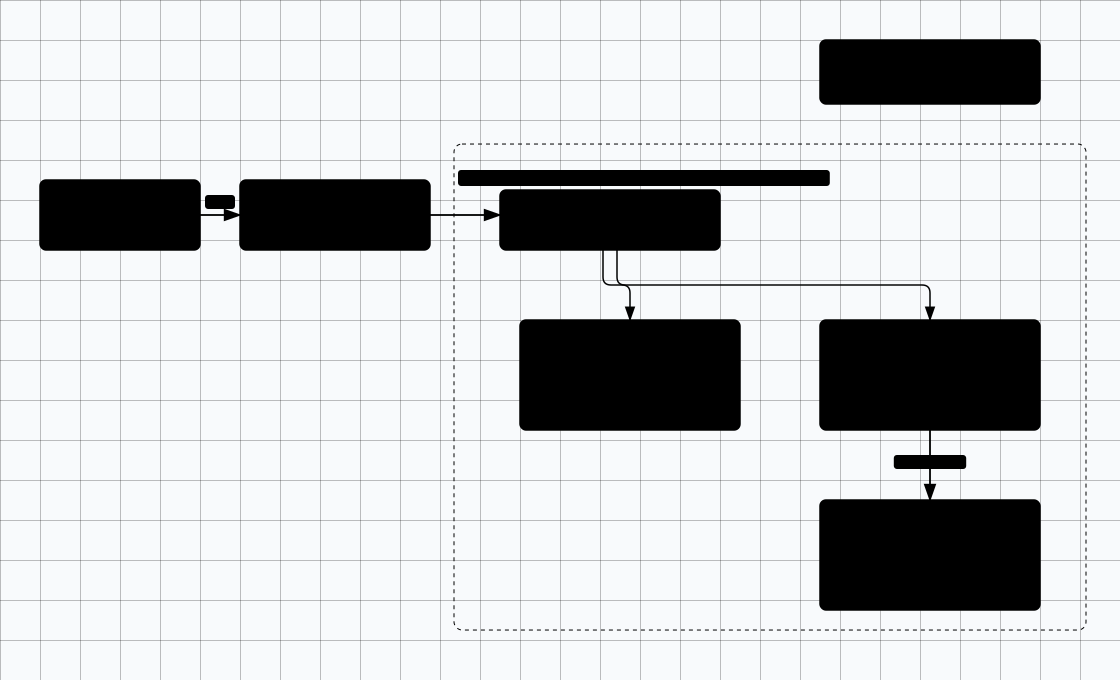
Scroll sideways to see the whole diagram
Required Virtual Machines
REMnux is the Linux analysis VM, not the gateway. REMnux ships INetSim as part of its toolkit, but this layout runs INetSim on a separate services VM, and that VM — not REMnux — is the victim's default gateway and DNS on the isolated network.
🔬 Analysis VM (REMnux)
- OS: REMnux (Ubuntu-based)
- RAM: 4-8GB
- Disk: 60GB+
- Purpose: Static analysis, network capture
🎯 Victim VM (Windows)
- OS: Windows 11 Enterprise (evaluation ISO)
- RAM: 4-8GB
- Disk: 60GB+
- Purpose: Execute & monitor malware
Build on Windows 11 Enterprise evaluation. Windows 10 reached end of support on 14 October 2025, so do not stand up new analysis VMs on it.
🌐 INetSim VM
- OS: Debian/Ubuntu minimal
- RAM: 1-2GB
- Disk: 20GB
- Purpose: Fake gateway, DNS and internet services for the victim
Network Isolation Setup
Critical
VirtualBox Configuration (Internal Network)
# Internal network: guests see each other and nothing else - no host adapter exists
VBoxManage modifyvm "MalwareAnalysis" --nic1 intnet --intnet1 MalwareLab

# Repeat on the INetSim and victim VMs so all three share the same "MalwareLab" segment
VBoxManage modifyvm "INetSim" --nic1 intnet --intnet1 MalwareLab
VMware Configuration (Internal-Equivalent VMnet)
# Edit vmnetcfg or use Virtual Network Editor
# Create custom VMnet (e.g., VMnet2) for the analysis pair
# Settings:
#   - Host-only type with "Connect a host virtual adapter" UNCHECKED
#     (VMware's closest equivalent to an Internal Network - guests only)
#   - Subnet: 10.0.0.0/24
#   - DHCP disabled

# Assign VMs to this custom network in VM settings
Static IP Configuration
| VM | IP Address | Gateway | DNS |
|---|---|---|---|
| INetSim gateway + DNS | 10.0.0.1 | - | - |
| REMnux analysis VM | 10.0.0.10 | 10.0.0.1 | 10.0.0.1 |
| Victim VM | 10.0.0.100 | 10.0.0.1 | 10.0.0.1 |
INetSim Configuration
INetSim simulates common internet services, tricking malware into thinking it has internet access while you capture all its communications.
INetSim is preinstalled on REMnux, but this layout runs it on the dedicated Debian/Ubuntu services VM, so the install step below applies to that VM.
# Install INetSim
sudo apt update && sudo apt install inetsim

# Edit configuration
sudo nano /etc/inetsim/inetsim.conf

# Key settings to modify:
service_bind_address    10.0.0.1
dns_default_ip          10.0.0.1
dns_default_hostname    inetsim

# Enable services
start_service dns
start_service http
start_service https
start_service smtp
start_service pop3
start_service irc

# Start INetSim
sudo inetsim
Essential Analysis Tools
Static Analysis
- Ghidra: NSA's reverse engineering framework
- IDA Free: Interactive disassembler
- PE-bear: PE file analyzer
- DIE: Detect It Easy - packer detection
- strings/FLOSS: String extraction
- YARA: Pattern matching rules
Dynamic Analysis
- x64dbg: Windows debugger
- Process Monitor: System activity monitoring
- Process Hacker: Advanced task manager
- Wireshark: Network traffic capture
- Regshot: Registry comparison
- API Monitor: API call logging
Victim VM Configuration
# Analysis VM only: reduce host controls after snapshotting and isolating the network
Set-MpPreference -DisableRealtimeMonitoring $true
Set-MpPreference -SubmitSamplesConsent NeverSend

  # Analysis VM only: disable Windows Firewall after confirming no route to your LAN
netsh advfirewall set allprofiles state off

# Install analysis tools via Chocolatey
Set-ExecutionPolicy Bypass -Scope Process -Force
[System.Net.ServicePointManager]::SecurityProtocol = [System.Net.ServicePointManager]::SecurityProtocol -bor 3072
iex ((New-Object System.Net.WebClient).DownloadString('https://community.chocolatey.org/install.ps1'))

# Install tools (run before isolating network)
choco install -y procexp procmon autoruns wireshark x64dbg.portable

# Take a CLEAN SNAPSHOT before any malware execution
# Name it: "Clean-Baseline-YYYYMMDD"
Snapshot Strategy
Alternative: FLARE VM
Mandiant's FLARE VM is a pre-configured Windows-based malware analysis distribution with 140+ tools pre-installed. It must be installed on a VM, not a host: disable Tamper Protection, real-time protection and Windows Update first (preferably via Group Policy), because Defender otherwise quarantines the toolset and its downloads. Take a snapshot before running the installer.
# Start with a fresh, fully patched Windows 11 VM
# Analysis VM only: follow FLARE VM prerequisites after snapshotting and isolating the host
# Run PowerShell as Administrator:

# Download and run FLARE VM installer
(New-Object net.webclient).DownloadFile(
  'https://raw.githubusercontent.com/mandiant/flare-vm/main/install.ps1',
  "$env:TEMP\install.ps1"
)
Unblock-File "$env:TEMP\install.ps1"
Set-ExecutionPolicy Unrestricted -Force
& "$env:TEMP\install.ps1"

# Follow prompts - installation takes 1-2 hours
# Take snapshot after installation completes
Alternative: CAPE Sandbox
CAPE (Config And Payload Extraction) is a self-hosted automated malware analysis sandbox, the actively maintained successor to Cuckoo Sandbox. It automatically extracts configs, payloads, and IOCs from malware samples.
# CAPE recommends a dedicated Ubuntu 24.04 host or VM
# Full installation guide: https://capev2.readthedocs.io

# Native install from the cloned repository (not a Docker container)
git clone https://github.com/kevoreilly/CAPEv2.git
cd CAPEv2

# Use the provided installer script
sudo ./installer/cape2.sh base
sudo ./installer/cape2.sh cape

# Configure analysis VMs in conf/virtualbox.conf or conf/kvm.conf
# Submit samples via web UI at https://localhost:8443
Cloud-Based Triage (Quick Analysis)
Before spinning up your full lab, use cloud sandboxes for quick initial triage:
ANY.RUN
Interactive cloud sandbox. Watch malware execute in real-time in a browser-based VM. Free tier available.
any.run →Triage (Hatching)
Automated sandbox with YARA rules, behavioral analysis, and config extraction. Free community tier.
tria.ge →Joe Sandbox
Deep analysis with MITRE ATT&CK mapping. Cloud and on-premise options. Free community tier.
joesandbox.com →When to Use Cloud vs. Local
Cloud Sandbox Privacy
Malware Sample Sources
Handle With Care
Free Sources
- MalwareBazaar - Community sample sharing
- VirusTotal - Download with API/account
- theZoo - Curated sample repository
- vx-underground - Malware papers & samples
Practice Samples
- Endermanch Collection - Classics
- VirusShare - Large corpus, account required
- CTF samples - Malware challenges from CTFs
- PMAT Course - TCM Security's course samples
Analysis Workflow
Prepare Environment
Start from clean snapshot, verify network isolation, start INetSim and packet capture
Static Analysis
Hash sample, check VT, extract strings, identify packers, review imports/exports
Dynamic Analysis
Start monitoring tools, execute sample, observe behavior, capture network traffic
Deep Analysis
Disassemble in Ghidra, debug with x64dbg, unpack if needed, extract IOCs
Document & Clean Up
Export PCAP, save IOCs, document findings, REVERT TO CLEAN SNAPSHOT
Quick Reference Commands
# Hash a file (PowerShell)
Get-FileHash -Algorithm SHA256 sample.exe

# Hash a file (Linux)
sha256sum sample.exe
md5sum sample.exe

# Extract strings (Linux)
strings -a sample.exe | less
floss sample.exe  # Better string extraction

# Check PE headers (REMnux ships the pefile Python library)
python3 - <<'PY'
import pefile
pe = pefile.PE("sample.exe")
print(hex(pe.FILE_HEADER.Machine))
for section in pe.sections:
    print(section.Name.decode(errors="replace").rstrip("\x00"), hex(section.VirtualAddress))
PY

# Binutils alternative (no extra packages needed)
objdump -x sample.exe | head -40

# Start Wireshark capture
wireshark -i eth0 -k -w capture.pcap

# YARA scan
yara -r rules/ sample.exe
Safety Reminder
Malware analysis is inherently dangerous. Always maintain strict isolation, use dedicated hardware when possible, and never underestimate a sample's capabilities. Some malware can detect and escape virtual environments.
Troubleshooting FAQ
Malware sample detected and quarantined by host AV
- Password-protect sample ZIPs (standard:
infected) - Add exclusions in host AV for your analysis VM shared folders
- Transfer samples via SCP/SFTP directly into the isolated VM
- Consider using a dedicated physical machine for malware analysis
Sample not executing in the VM
- Check architecture (x86 vs x64) — use
file sample.exeon Linux - Some malware detects VMs — disable VM artifacts: remove VMware Tools, change MAC prefix
- Missing dependencies: install Visual C++ runtimes and .NET frameworks
- Try running as Administrator with Defender/AV disabled
INetSim not capturing DNS/HTTP traffic
- Ensure the victim VM's DNS and default gateway point at the INetSim host (10.0.0.1 in this layout)
- Verify INetSim is running:
sudo inetsim(check for binding errors) - Check firewall rules on the INetSim VM — ports 53, 80, 443 must be open
- Confirm both VMs are on the same isolated internal network
Readiness And Evidence
What this lab must have before you start, and what to capture so the work is repeatable and reportable.
Minimum Viable Setup
- REMnux plus one disposable Windows victim VM
- Internal-only network with no route to LAN
- Immutable clean snapshot before any sample
Evidence To Capture
- Route table showing no internet path
- INetSim DNS response
- Sample hash and source note
- Packet capture proving simulated traffic only
Keep It Fresh
Re-check these against the current release before you trust the lab again.
-
REMnux and FLARE VM Before rebuild
Check official install docs and supported Windows versions.
-
Sample handling rules Every case
Confirm authorization, storage, and disclosure rules first.
Setup Anti-Patterns
Habits that turn a useful lab into an unnecessary risk.
- Analyzing malware on the host machine
- Leaving shared clipboard or folders enabled
- Uploading client samples to public sandboxes without approval
Operational Safety Baseline
Apply these rules before running any lab command on this page.
- Work only on systems you own or have explicit authorization to test.
- Keep vulnerable services off your home LAN and off public interfaces.
- Take clean snapshots before every exercise and before every vulnerable configuration change.
- Use dedicated cloud accounts, subscriptions, and projects with billing alerts before deployment.
- Write down the teardown command before you run the setup command.
Validation Checkpoints
- -Victim has no internet route
- -DNS resolves to INetSim
- -Packet capture sees simulated traffic
- -Snapshots are immutable before detonation
Cleanup And Rollback
- -Revert victim snapshot after every sample
- -Store samples in password-protected archives
- -Purge shared folders and clipboard settings
Related Guides
IOC Extractor
Pull addresses, domains and hashes out of strings output
DFIR
Digital forensics and incident response
Kali Setup
Configure your analysis machine
Threat Intelligence
IOC extraction and analysis
Reverse Engineering
Binary analysis and disassembly
Binary Exploitation
Understanding binary internals