Web Application Lab
Set up vulnerable web applications locally using Docker for practicing XSS, SQL injection, authentication bypass, and other web security vulnerabilities.
This page owns building the lab: getting the apps running, isolated, and resettable. Using them is the job of the Web Pentesting section, which runs the techniques against these targets once they are up.
Docker Required
Bind Vulnerable Apps Locally
Isolate First
Containers sit on a Compose bridge network your LAN cannot route to, and publishing to 127.0.0.1 keeps them off the host network too. A plain -p 8080:80 publishes on 0.0.0.0 and hands every device on your home LAN a deliberately vulnerable app.
- Network type
- Docker bridge, every port bound to 127.0.0.1
- Lab network
- lab-web (Compose project)
- Subnet
- No fixed subnet — the isolation boundary is the loopback bind
IP plan
| Role | Host binding |
|---|---|
| DVWA | 127.0.0.1:8081 |
| Juice Shop | 127.0.0.1:3000 |
| WebGoat / WebWolf | 127.0.0.1:8080 / :9090 |
| Intercepting proxy (Burp, ZAP, Caido) | 127.0.0.1 loopback, free port |
Create it
Docker
# One project network, and every published port pinned to loopback
docker network create lab-web
# The published DVWA image ships no database — give it a MariaDB container
docker run -d --network lab-web --name dvwa-db \
  -e MYSQL_ROOT_PASSWORD=dvwa -e MYSQL_DATABASE=dvwa \
  -e MYSQL_USER=dvwa -e MYSQL_PASSWORD=p@ssw0rd mariadb:10
docker run -d --network lab-web -e DB_SERVER=dvwa-db \
  -p 127.0.0.1:8081:80 --name dvwa ghcr.io/digininja/dvwa
docker ps --format '{{.Names}} {{.Ports}}'
Podman
# Same syntax; Podman is rootless by default and still needs the loopback bind
podman network create lab-web
podman run -d --network lab-web --name dvwa-db \
  -e MYSQL_ROOT_PASSWORD=dvwa -e MYSQL_DATABASE=dvwa \
  -e MYSQL_USER=dvwa -e MYSQL_PASSWORD=p@ssw0rd docker.io/library/mariadb:10
podman run -d --network lab-web -e DB_SERVER=dvwa-db \
  -p 127.0.0.1:8081:80 --name dvwa ghcr.io/digininja/dvwa
Prove it is isolated
docker ps --format '{{.Names}} {{.Ports}}' | grep '0.0.0.0' || echo "all ports loopback-bound"Expected: "all ports loopback-bound". Any line printed above it is a container published on every interface, so anything on your home LAN can reach it.
Never publish a vulnerable app to 0.0.0.0, a LAN address, a VPN, or a cloud IP — loopback only.
Lab Runbook
Use this page as a controlled lab build, not a production hardening guide. Prove the network is isolated before running exercises, then validate and clean up from the operational section at the end of the page.
Plan
2-6 GB; 10-30 GB. Free. Isolation: Bind to localhost or isolated lab interface only.
Outcomes
- - DVWA or Juice Shop running
- - Proxy configured
- - Reset path documented
- - Cleanup command tested
Web lab: container apps published on loopback
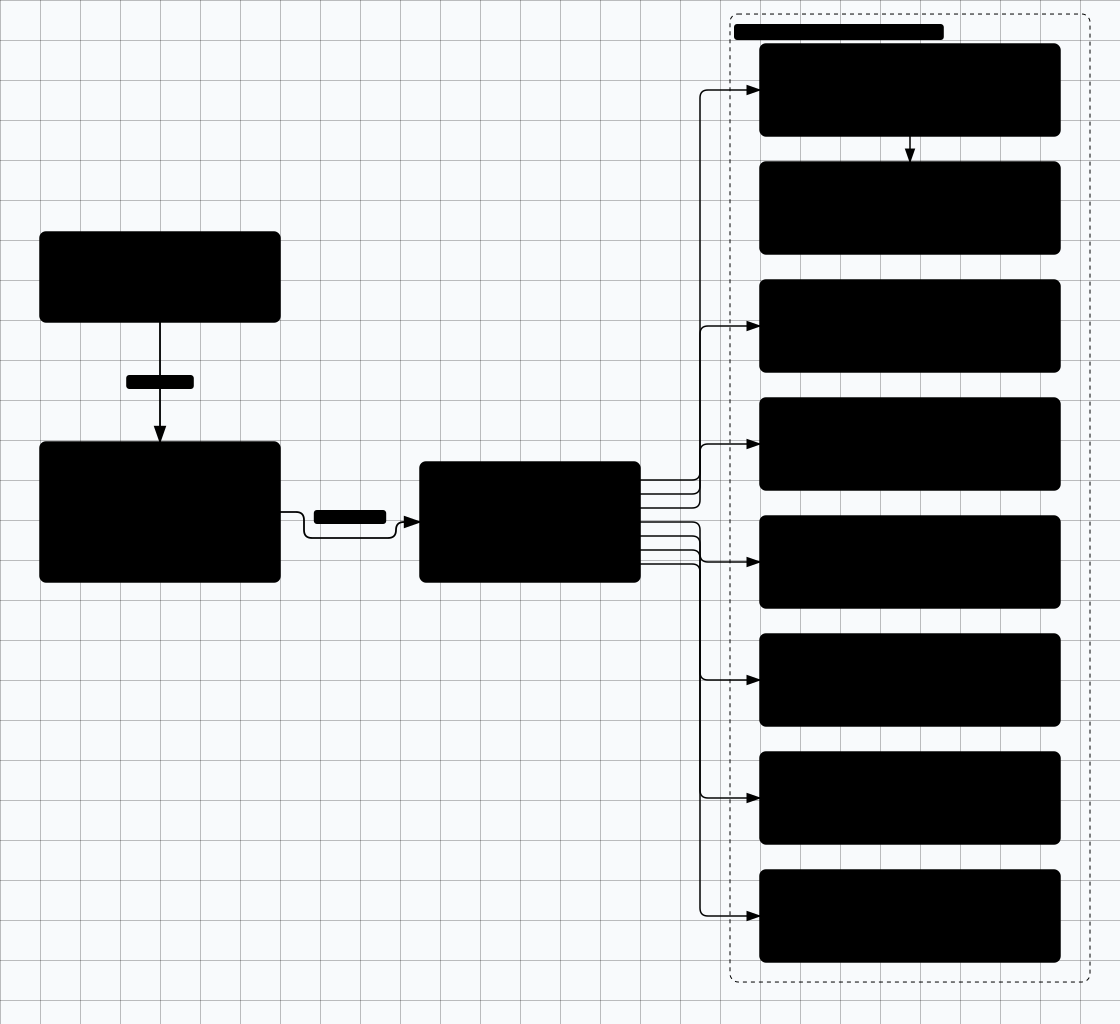
Scroll sideways to see the whole diagram
Quick Start with Docker
# Official Docker apt repository (Debian example - swap debian for ubuntu
# in both the key URL and the sources.list line on Ubuntu hosts)
sudo apt update
sudo apt install -y ca-certificates curl gnupg
sudo install -m 0755 -d /etc/apt/keyrings
sudo curl -fsSL https://download.docker.com/linux/debian/gpg -o /etc/apt/keyrings/docker.asc
sudo chmod a+r /etc/apt/keyrings/docker.asc

echo "deb [arch=$(dpkg --print-architecture) signed-by=/etc/apt/keyrings/docker.asc] https://download.docker.com/linux/debian $(. /etc/os-release && echo $VERSION_CODENAME) stable" | sudo tee /etc/apt/sources.list.d/docker.list > /dev/null

sudo apt update
sudo apt install -y docker-ce docker-ce-cli containerd.io docker-buildx-plugin docker-compose-plugin

# Optional: run docker without sudo on a dedicated lab machine only
sudo usermod -aG docker $USER
newgrp docker

# Verify installation
docker --version
docker compose version
docker run hello-world
Vulnerable Applications
DVWA
BeginnerDamn Vulnerable Web App - Classic PHP vulnerabilities
ghcr.io/digininja/dvwa
OWASP Juice Shop
All LevelsModern JS/Node app with 100+ challenges
bkimminich/juice-shop
WebGoat
BeginnerOWASP learning platform for web security
webgoat/webgoat
bWAPP
IntermediateBuggy Web Application with 100+ bugs
raesene/bwapp
crAPI
IntermediateOWASP Completely Ridiculous API - Modern API vulnerabilities (multi-container)
crapi/crapi-web
vAPI
IntermediateVulnerable API with OWASP API Top 10 coverage - unmaintained since 2021; pin the image and treat it as a legacy target
roottusk/vapi
DVGA
IntermediateDamn Vulnerable GraphQL Application - GraphQL-specific attacks
dolevf/dvga
NodeGoat
IntermediateOWASP Node.js vulnerable application - build it from the OWASP/NodeGoat repo
OWASP/NodeGoat (build)
Two labs need a little care: crAPI runs as a multi-container stack (see crAPI below), and NodeGoat has no published Docker image — clone OWASP/NodeGoat and build it with the Dockerfile / compose file in that repo.
DVWA Setup
DVWA (Damn Vulnerable Web Application) is perfect for beginners. It includes multiple security levels (Low, Medium, High, Impossible) for each vulnerability type.
# The published DVWA image has no database of its own: pass DB_SERVER and
# give it a MariaDB container, or the setup page fails with a database error.
docker network create dvwa-net

docker run -d --name dvwa-db --network dvwa-net \
  -e MYSQL_ROOT_PASSWORD=dvwa -e MYSQL_DATABASE=dvwa \
  -e MYSQL_USER=dvwa -e MYSQL_PASSWORD=p@ssw0rd mariadb:10

docker run -d --name dvwa --network dvwa-net -e DB_SERVER=dvwa-db \
  -p 127.0.0.1:8081:80 ghcr.io/digininja/dvwa

# Access at http://localhost:8081
# Default credentials: admin / password

# After login, click "Create / Reset Database"
# Then go to DVWA Security and set level to "Low" to start
DVWA Vulnerabilities to Practice:
OWASP Juice Shop Setup
Juice Shop is a modern, feature-rich vulnerable application with a gamified experience. It has 100+ challenges across all skill levels and covers the OWASP Top 10.
# Pull and run Juice Shop
docker run -d -p 127.0.0.1:3000:3000 --name juice-shop bkimminich/juice-shop

# Access at http://localhost:3000

# Features:
# - Built-in score board (find it as a challenge!)
# - 100+ challenges with hints
# - Covers OWASP Top 10 and more
# - Modern JavaScript/Node.js architecture
Juice Shop Tips
OWASP WebGoat Setup
# Run WebGoat with WebWolf (companion app)
docker run -d -p 127.0.0.1:8080:8080 -p 127.0.0.1:9090:9090 --name webgoat webgoat/webgoat

# WebGoat: http://localhost:8080/WebGoat
# WebWolf: http://localhost:9090/WebWolf

# Register a new account to start
# Lessons are structured with explanations and exercises
Docker Compose: Multiple Apps
Run multiple vulnerable applications at once using Docker Compose.
services:
  dvwa:
    image: ghcr.io/digininja/dvwa
    ports:
      - "127.0.0.1:8081:80"
    container_name: dvwa
    environment:
      - DB_SERVER=dvwa-db
    depends_on:
      - dvwa-db

  dvwa-db:
    image: mariadb:10
    container_name: dvwa-db
    environment:
      - MYSQL_ROOT_PASSWORD=dvwa
      - MYSQL_DATABASE=dvwa
      - MYSQL_USER=dvwa
      - MYSQL_PASSWORD=p@ssw0rd

  juice-shop:
    image: bkimminich/juice-shop
    ports:
      - "127.0.0.1:3000:3000"
    container_name: juice-shop

  webgoat:
    image: webgoat/webgoat
    ports:
      - "127.0.0.1:8080:8080"
      - "127.0.0.1:9090:9090"
    container_name: webgoat

  bwapp:
    image: raesene/bwapp
    ports:
      - "127.0.0.1:8082:80"
    container_name: bwapp

  dvga:
    image: dolevf/dvga
    ports:
      - "127.0.0.1:5013:5013"
    container_name: dvga
    environment:
      - WEB_HOST=0.0.0.0  # Container bind; host exposure is restricted by 127.0.0.1 port mapping

# crAPI is deliberately NOT part of this file: it is a multi-service
# stack with its own compose file (see the crAPI section below).

# Run with: docker compose up -d
# Stop with: docker compose down# Create docker-compose.yml with above content
# Then run:
docker compose up -d
# Check running containers
docker ps
# Access points:
# DVWA: http://localhost:8081
# Juice Shop: http://localhost:3000
# WebGoat: http://localhost:8080
# bWAPP: http://localhost:8082
# DVGA: http://localhost:5013
# Stop all
docker compose downcrAPI (Multi-Container API Lab)
crAPI is a distributed application, not a single image. The upstream stack runs about ten
containers: crapi-web (the front door),
crapi-identity,
crapi-community,
crapi-workshop and
crapi-chatbot, plus PostgreSQL, MongoDB,
Chroma, MailHog and an API gateway. Starting the web container on its own leaves the app unable to
register or log in, so use the project's own compose file instead of a hand-rolled one.
# Clone the project and use its compose stack
git clone https://github.com/OWASP/crAPI.git
cd crAPI/deploy/docker
docker compose up -d

# Access points (all bound to 127.0.0.1 by default)
# Web UI + API: http://localhost:8888
# TLS:          https://localhost:8443
# MailHog UI:   http://localhost:8025

# First start takes a few minutes while the services come up
docker compose ps

# Stop and remove the stack
docker compose down
Web Proxy Configuration
Configure a web proxy to intercept traffic to your local vulnerable apps. Burp Suite is the industry standard; Caido is a modern, lightweight alternative worth trying.
| Proxy | Cost | Scripting | Automation | Best For |
|---|---|---|---|---|
| Burp Suite Community | Free | Limited | Manual only | Learning, manual testing |
| Burp Suite Pro | $499/user/yr | BApp extensions | Scanner + Intruder | Professional pentesting |
| Caido | Free / $20/mo or $200/yr | JavaScript plugins | Automate + Replay | Modern UI, fast, API-first |
| mitmproxy | Free (OSS) | Python scripting | Full Python API | Scripted testing, CI/CD |
| OWASP ZAP | Free (OSS) | Zest scripts | Active/Passive scanner | DAST, automation, CI/CD |
# 1. Start Burp Suite
# 2. Proxy > Options > Add listener on 127.0.0.1:8080

# Browser Configuration (Firefox recommended):
# Settings > Network Settings > Manual proxy
# HTTP Proxy: 127.0.0.1  Port: 8080
# Check "Also use for HTTPS"

# Install Burp CA Certificate:
# 1. Browse to http://burpsuite
# 2. Download CA Certificate
# 3. Import into browser's certificate store

# Target scope (add your apps):
# Target > Scope > Add:
#   - http://localhost:3000    (Juice Shop)
#   - http://localhost:8081    (DVWA)
#   - http://localhost:8080    (WebGoat)
#   - http://localhost:5013    (DVGA - GraphQL)
#   - http://localhost:8888    (crAPI)
#   - https://localhost:8443   (crAPI TLS)
Practice Exercises
Exercise 1: SQL Injection (DVWA)
Set security to Low. Go to SQL Injection page. Extract all usernames and passwords from the database.
Exercise 2: XSS Cookie Stealing (DVWA)
Use Stored XSS against your local lab app and capture the request with a local listener or Burp Collaborator-equivalent inside your authorized lab scope.
Exercise 3: Find the Admin (Juice Shop)
Find the admin's email address, then log in as admin using SQL injection on the login form.
Exercise 4: JWT Manipulation (WebGoat)
Complete the JWT lessons - learn to decode, tamper, and exploit weak JWT implementations.
Exercise 5: GraphQL Introspection (DVGA)
Use introspection to map the GraphQL schema, then exploit IDOR and injection vulnerabilities in queries and mutations.
Exercise 6: API BOLA Attack (crAPI)
Exploit Broken Object Level Authorization to access other users' vehicle data through the crAPI REST API.
Cleanup Commands
# Stop specific container
docker stop dvwa dvwa-db juice-shop webgoat bwapp dvga

# Remove containers
docker rm dvwa dvwa-db juice-shop webgoat bwapp dvga

# Remove the DVWA quick-start network (compose manages its own)
docker network rm dvwa-net

# crAPI runs from its own compose file
cd crAPI/deploy/docker && docker compose down

# Remove all stopped containers
docker container prune

# Remove images to free space
docker rmi ghcr.io/digininja/dvwa mariadb:10 bkimminich/juice-shop webgoat/webgoat raesene/bwapp dolevf/dvga

# Nuclear option - remove everything
docker system prune -a
💡 Pro Tip
Start with DVWA on "Low" security to understand each vulnerability type. Then increase difficulty and try Juice Shop for a more realistic modern web app experience. Document your findings as you would in a real pentest report.
Troubleshooting FAQ
Docker containers won't start (port conflict)
- Check what's using the port:
sudo lsof -i :8080ornetstat -tlnp | grep 8080 - Change the host port in docker run:
-p 9090:80instead of-p 80:80 - Stop conflicting containers:
docker psthendocker stop container_name - On Windows/Mac: check Docker Desktop is running
Burp Suite not intercepting HTTPS traffic
- Install CA cert: browse to
http://burpsuiteand download/import the certificate - Firefox: Settings > Privacy > View Certificates > Import (check "Trust for websites")
- Ensure proxy is set in browser (not just system proxy)
- Check Burp intercept is ON: Proxy > Intercept tab
DVWA shows "Access denied" or database error
- Default login:
admin / password - Click "Create / Reset Database" on the setup page first
- Check the database container is up:
docker ps --filter name=dvwa-db(the app has no bundled database) - If container keeps crashing, recreate:
docker rm -f dvwa && docker run -d --network dvwa-net -e DB_SERVER=dvwa-db -p 127.0.0.1:8081:80 --name dvwa ghcr.io/digininja/dvwa
crAPI containers keep restarting
- crAPI needs the whole stack — check every service:
docker compose psincrAPI/deploy/docker - Health checks gate startup order; give PostgreSQL and MongoDB a minute before the apps report healthy
- Read one service's log:
docker logs crapi-identity - Clean restart:
docker compose down && docker compose up -d
Readiness And Evidence
What this lab must have before you start, and what to capture so the work is repeatable and reportable.
Minimum Viable Setup
- Juice Shop or DVWA bound to 127.0.0.1
- Burp, ZAP, or Caido proxy configured
- docker compose down -v tested before exercises
Evidence To Capture
- Browser screenshot of the app landing page
- Proxy intercept screenshot
- docker ps with localhost-bound ports
- Reset or seed command output
Keep It Fresh
Re-check these against the current release before you trust the lab again.
-
Vulnerable app images Quarterly
Pull current images and review upstream README changes.
-
Proxy tooling Monthly
Update Burp/ZAP/Caido before serious practice.
Setup Anti-Patterns
Habits that turn a useful lab into an unnecessary risk.
- Publishing vulnerable apps to LAN, VPN, or cloud IPs
- Reusing vulnerable app credentials elsewhere
- Leaving test containers running after practice
Operational Safety Baseline
Apply these rules before running any lab command on this page.
- Work only on systems you own or have explicit authorization to test.
- Keep vulnerable services off your home LAN and off public interfaces.
- Take clean snapshots before every exercise and before every vulnerable configuration change.
- Use dedicated cloud accounts, subscriptions, and projects with billing alerts before deployment.
- Write down the teardown command before you run the setup command.
Validation Checkpoints
- -Apps respond on expected localhost ports
- -Burp or ZAP intercepts browser traffic
- -No vulnerable container is bound to a public interface
Cleanup And Rollback
- -docker compose down -v
- -docker container prune after exporting notes
- -Reset app databases between exercises