Purple Team / SIEM Lab Setup
Build a detection-capable lab environment combining offensive attack simulation with defensive monitoring. Practice writing detections, tuning SIEM rules, and validating security controls using Wazuh, Elastic Security, and Sigma rules.
Resource Requirements
Verify Current SIEM Versions
Isolate First
Agents must only reach the SIEM you built, and attack replay must stay on a segment you own. Internal Network carries agent traffic and attacker traffic on one private segment with no host adapter and no way out; NAT would let agents phone home to vendor update servers, and bridging would put attack replay on your home LAN.
- Network type
- VirtualBox Internal Network
- Lab network
- lab-socnet
- Subnet
- 10.10.10.0/24
IP plan
| Role | IP |
|---|---|
| Windows domain controller (optional) (DC01) | 10.10.10.10 |
| Windows victim with agent (WIN10) | 10.10.10.20 |
| Wazuh / Elastic SIEM (SIEM) | 10.10.10.50 |
| Kali attack replay driver (Kali) | 10.10.10.100 |
Create it
VirtualBox (VBoxManage)
VBoxManage modifyvm "SIEM" --nic1 intnet --intnet1 lab-socnet
VBoxManage modifyvm "WIN10" --nic1 intnet --intnet1 lab-socnet
VBoxManage modifyvm "Kali" --nic1 nat --nic2 intnet --intnet2 lab-socnet
VBoxManage list intnets
VMware, Hyper-V or KVM
# VMware: custom VMnet, host virtual adapter UNCHECKED, DHCP off, 10.10.10.0/24
# Hyper-V: New-VMSwitch -Name lab-socnet -SwitchType Internal (no NAT rule)
# KVM: <forward mode='none'/> network on 10.10.10.0/24
Prove it is isolated
Test-NetConnection 10.10.10.50 -Port 1514; Test-NetConnection 8.8.8.8 -Port 443Expected: True for the SIEM on 1514 and False for 8.8.8.8. An agent that can reach the internet has a NAT adapter it should not have, and your telemetry may be leaving the lab.
Never bridge a monitored victim: attack replay traffic on your home LAN trips real IDS and reaches real devices.
Lab Runbook
Use this page as a controlled lab build, not a production hardening guide. Prove the network is isolated before running exercises, then validate and clean up from the operational section at the end of the page.
Plan
32 GB+; 200 GB+. Free locally. Isolation: Internal detection network with controlled log retention.
Outcomes
- - SIEM stack running
- - Agents enrolled
- - Sysmon configured
- - Detection notes for each attack
Lab Architecture
Isolated Lab Network
10.10.10.0/24Kali
Exercise driver and validation host. IP: 10.10.10.100.
Windows DC
Domain services, Sysmon, and controlled event generation. IP: 10.10.10.10.
Workstation
Endpoint telemetry source with Sysmon and Wazuh or Elastic agent. IP: 10.10.10.20.
SIEM
Wazuh, Elastic, or both. IP: 10.10.10.50.
Every exercise below uses these addresses: 10.10.10.10 is the
domain controller, 10.10.10.20 is the workstation,
10.10.10.50 is the SIEM, and
10.10.10.100 is Kali. Substitute your own plan if it differs.
Purple team telemetry path
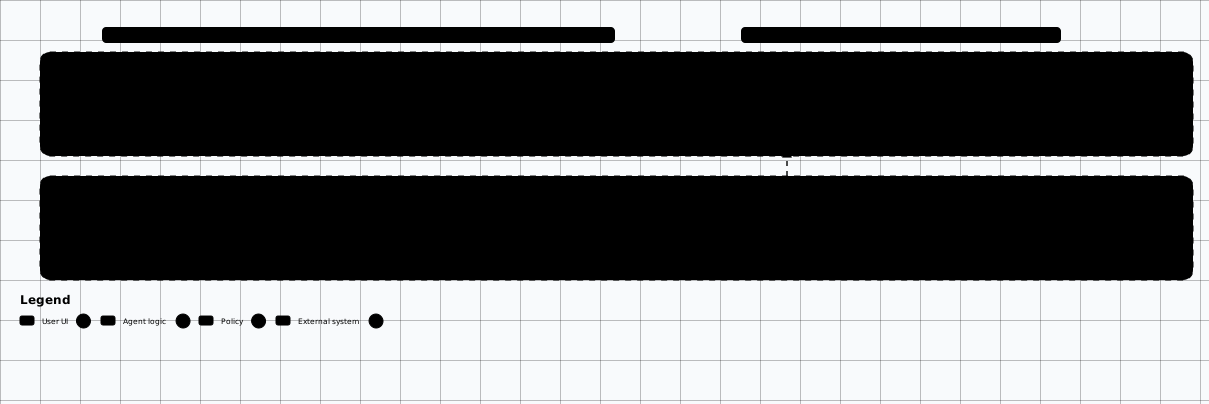

Scroll sideways to see the whole diagram
Option 1: Wazuh SIEM
Wazuh is an open-source security platform combining SIEM, XDR, and compliance monitoring. It provides log analysis, intrusion detection, file integrity monitoring, and active response.
Wazuh Manager
- ✓ Log collection & analysis
- ✓ Rule-based alerting
- ✓ Vulnerability detection
- ✓ File integrity monitoring
Wazuh Indexer
- ✓ OpenSearch-based
- ✓ Log storage & search
- ✓ Alerting & dashboards
- ✓ REST API
Wazuh Dashboard
- ✓ Web UI for analysis
- ✓ MITRE ATT&CK mapping
- ✓ Agent management
- ✓ Custom dashboards
# Clone the Wazuh Docker repository and pin a 4.x release tag.
# main tracks the next major (5.x) and no longer ships generate-indexer-certs.yml,
# which is why an unpinned clone fails at the certificate step.
git clone --branch v4.14.9 --depth 1 https://github.com/wazuh/wazuh-docker.git
cd wazuh-docker/single-node

# Generate self-signed certificates
docker compose -f generate-indexer-certs.yml run --rm generator

# Start Wazuh stack (Manager + Indexer + Dashboard)
docker compose up -d

# Access dashboard at https://localhost:443
# Default lab credentials are documented in the upstream compose files
# Change the password immediately after first login

# Check status
docker compose ps
Install Wazuh Agent on Windows
# Download and install Wazuh agent on target Windows machines
# Run in PowerShell as Administrator

# Agent version must match the manager release. The /4.x/ path segment is
# literal for the whole 4.x series; 4.14.9 is a published build.
$WazuhAgentVersion = "4.14.9"
$WazuhAgentUrl = "https://packages.wazuh.com/4.x/windows/wazuh-agent-$WazuhAgentVersion-1.msi"
Invoke-WebRequest -Uri $WazuhAgentUrl -OutFile wazuh-agent.msi

# Confirm the download is a real MSI before installing
Get-Item .\wazuh-agent.msi | Select-Object Name, Length

# Install with manager IP
msiexec.exe /i wazuh-agent.msi /q WAZUH_MANAGER="10.10.10.50" WAZUH_REGISTRATION_SERVER="10.10.10.50"

# Start the agent service
NET START WazuhSvc

# Verify connection
& "C:\Program Files (x86)\ossec-agent\agent-auth.exe" -m 10.10.10.50
Option 2: Elastic Security (ELK)
Elastic Security provides SIEM, endpoint detection, and threat hunting built on the Elastic Stack. Pairs well with Beats agents for log shipping.
# Create docker-compose.yml for Elastic Security
cat > docker-compose.yml << 'EOF'
services:
  elasticsearch:
    image: docker.elastic.co/elasticsearch/elasticsearch:${ELASTIC_VERSION:-8.17.0}  # pinned 8.x example; 9.x is the current major — bump every tag here together
    environment:
      - discovery.type=single-node
      - xpack.security.enabled=true
      - ELASTIC_PASSWORD=LAB_ONLY_change_after_boot
      - "ES_JAVA_OPTS=-Xms2g -Xmx2g"
    ports:
      # Bound to every interface on the SIEM host (10.10.10.50) so the Windows
      # targets can ship logs here; keep the host on the isolated lab network.
      - "9200:9200"
    volumes:
      - esdata:/var/lib/elasticsearch/data

  kibana:
    image: docker.elastic.co/kibana/kibana:${ELASTIC_VERSION:-8.17.0}
    environment:
      - ELASTICSEARCH_HOSTS=http://elasticsearch:9200
      - ELASTICSEARCH_USERNAME=kibana_system
      - ELASTICSEARCH_PASSWORD=LAB_ONLY_change_after_boot
    ports:
      # Reachable from Kali so you can review alerts during an exercise
      - "5601:5601"
    depends_on:
      - elasticsearch

  fleet-server:
    image: docker.elastic.co/beats/elastic-agent:${ELASTIC_VERSION:-8.17.0}
    environment:
      - FLEET_SERVER_ENABLE=true
      - FLEET_SERVER_ELASTICSEARCH_HOST=http://elasticsearch:9200
      - FLEET_SERVER_POLICY_ID=fleet-server-policy
    ports:
      - "127.0.0.1:8220:8220"
    depends_on:
      - elasticsearch
      - kibana

volumes:
  esdata:
EOF

docker compose up -d

# Access Kibana at http://10.10.10.50:5601 from Kali (or http://localhost:5601 on the SIEM host)
# Navigate to Security > Overview for SIEM featuresShip Windows Logs with Winlogbeat
# Install Winlogbeat on a Windows target (DC or workstation), as Administrator
# Download from elastic.co/downloads/beats/winlogbeat, extract it, and run
# the commands below from that folder (winlogbeat.yml is written beside the exe).

# The default output is localhost:9200, which ships nowhere on an endpoint.
# Write a real winlogbeat.yml next to winlogbeat.exe before running setup.
@'
winlogbeat.event_logs:
  - name: Security
  - name: Microsoft-Windows-Sysmon/Operational
  - name: Microsoft-Windows-PowerShell/Operational
  - name: Windows PowerShell

output.elasticsearch:
  hosts: ["10.10.10.50:9200"]
  username: "elastic"
  password: "LAB_ONLY_change_after_boot"

setup.kibana:
  host: "10.10.10.50:5601"
'@ | Set-Content -Path .\winlogbeat.yml -Encoding UTF8

# Install and start the service, then confirm the SIEM is receiving events
.\winlogbeat.exe setup
.\install-service-winlogbeat.ps1
Start-Service winlogbeat
curl.exe -u elastic:LAB_ONLY_change_after_boot "http://10.10.10.50:9200/_cat/indices/winlogbeat-*?v"
Sigma Rules for Detection
Sigma is a generic signature format for SIEM systems. Write rules once, convert to any SIEM format. Use Sigma rules to build detections for the attacks you practice.
# The `sigma` command ships in SigmaHQ/sigma-cli; pySigma itself is a library
# with no console script, so `pipx install pySigma` gives you nothing to run.
pipx install sigma-cli

# Install conversion backends as sigma-cli plugins. They land inside the pipx
# venv, so this also avoids PEP 668 "externally managed environment" errors.
sigma plugin install elasticsearch   # Elastic
sigma plugin install splunk          # Splunk
sigma plugin install opensearch      # OpenSearch-backed stores

# List the plugin-provided targets before converting
sigma list targets

# Clone the Sigma rules repository
git clone https://github.com/SigmaHQ/sigma.git ~/tools/sigma
cd ~/tools/sigma

# Browse detection rules
ls rules/windows/process_creation/
ls rules/windows/builtin/security/
Example: Detect Kerberoasting
title: Kerberoasting Activity Detected
id: a1234567-89ab-cdef-0123-456789abcdef
status: experimental
description: Detects potential Kerberoasting by monitoring TGS ticket requests for RC4 encryption
author: Purple Team Lab
date: 2026/01/01
logsource:
  product: windows
  service: security
detection:
  selection:
    EventID: 4769
    TicketEncryptionType: '0x17'  # RC4 encryption
    TicketOptions: '0x40810000'
  filter:
    ServiceName|endswith: '$'  # Exclude machine accounts
  condition: selection and not filter
falsepositives:
  - Legacy applications using RC4
level: high
tags:
  - attack.credential_access
- attack.t1558.003# Backend ids come from `sigma list targets`. The Elasticsearch backend
# exposes `lucene` (with formats such as dsl_lucene or siem_rule_ndjson);
# `opensearch` is the OpenSearch backend. Both require a field-mapping
# pipeline, which is why ecs_windows is passed on every conversion.
# Convert the real Kerberoasting rule from the Sigma repository
sigma convert -t lucene -p ecs_windows rules/windows/builtin/security/win_security_kerberoasting_activity.yml
# Same rule for an OpenSearch-backed index
sigma convert -t opensearch -p ecs_windows rules/windows/builtin/security/win_security_kerberoasting_activity.yml
# Batch convert the whole security directory, one file per rule
sigma convert -t lucene -p ecs_windows --output-dir elastic-rules/ rules/windows/builtin/security/Purple Team Exercises
Run these attack-detect pairs to validate your monitoring. Attack from Kali, then verify detection in your SIEM. The addresses come from the lab plan above: DC 10.10.10.10, workstation 10.10.10.20, SIEM 10.10.10.50.
Attack: Kerberoasting (Kali → DC)
impacket-GetUserSPNs lab.local/jsmith:LAB_ONLY_Password123! -dc-ip 10.10.10.10 -request
Detect: Event ID 4769
Look for TGS requests with RC4 encryption (0x17) for non-machine accounts. Sigma rule: win_security_kerberoasting_activity
Attack: DCSync (Kali → DC)
impacket-secretsdump lab.local/admin.user:LAB_ONLY_Password123!@10.10.10.10
Detect: Event ID 4662
Monitor for Directory Replication rights (GUID: 1131f6ad-...) from non-DC sources. Sigma rule: win_security_account_backdoor_dcsync_rights
Attack: Pass-the-Hash (Kali → workstation)
netexec smb 10.10.10.20 -u admin.user -H <NTLM_HASH>
Detect: Event ID 4624 Type 3
Network logon with NTLM (not Kerberos). Correlate with Sysmon Event ID 3 for source connection.
Attack: Lateral Movement (PsExec, Kali → workstation)
impacket-psexec lab.local/admin.user:LAB_ONLY_Password123!@10.10.10.20
Detect: Sysmon Event ID 1 + 13
Watch for service creation (PSEXESVC) and suspicious process execution from SYSTEM context.
Attack: BloodHound Collection (Kali → DC)
bloodhound-python -d lab.local -u jsmith -p LAB_ONLY_Password123! -c all -ns 10.10.10.10
Detect: Event IDs 4662 + 5136
High volume LDAP queries against AD objects. Monitor for bulk directory reads from non-admin accounts.
Custom Wazuh Detection Rules
<!-- Detect Kerberoasting (TGS with RC4) -->
<group name="windows,kerberos,">
  <rule id="100100" level="12">
    <if_sid>60103</if_sid>
    <field name="win.eventdata.ticketEncryptionType">0x17</field>
    <field name="win.eventdata.serviceName" negate="yes">\$$</field>
    <description>Potential Kerberoasting: TGS request with RC4 encryption for $(win.eventdata.serviceName)</description>
    <mitre>
      <id>T1558.003</id>
    </mitre>
  </rule>

  <!-- Detect suspicious service installation (PsExec) -->
  <rule id="100101" level="10">
    <!-- 61138 = "New Windows Service Created" (System channel event 7045).
         61603 is Sysmon Event 1 and never carries a serviceName, so this
         rule would have matched nothing. -->
    <if_sid>61138</if_sid>
    <field name="win.eventdata.serviceName">PSEXESVC</field>
    <description>PsExec service detected: possible lateral movement</description>
    <mitre>
      <id>T1021.002</id>
    </mitre>
  </rule>

  <!-- Detect Mimikatz-style process names -->
  <rule id="100102" level="14">
    <if_sid>61603</if_sid>
    <field name="win.eventdata.image" type="pcre2">(?i)mimikatz|sekurlsa|kiwi</field>
    <description>Potential credential dumping tool detected: $(win.eventdata.image)</description>
    <mitre>
      <id>T1003.001</id>
    </mitre>
  </rule>
</group>
Retention And Index Cleanup
Detection labs fill disks quickly. Set retention during build and keep a known cleanup command ready before replaying attack telemetry.
# List lab indices
curl -u elastic:LAB_ONLY_change_after_boot http://localhost:9200/_cat/indices?v

# Delete disposable lab indices after exporting evidence
curl -u elastic:LAB_ONLY_change_after_boot -X DELETE "http://localhost:9200/winlogbeat-*"
curl -u elastic:LAB_ONLY_change_after_boot -X DELETE "http://localhost:9200/logstash-*"

# Full disposable stack cleanup
docker compose down -v# Confirm Windows event ingestion
event.code:4624 or event.code:4688
# Kerberoasting signal check
event.code:4769 and winlog.event_data.TicketEncryptionType:0x17
# PowerShell script block signal check
event.code:4104 and powershell.file.script_block_text:*Troubleshooting FAQ
Wazuh agents not connecting to manager
- Verify network connectivity:
ping 10.10.10.50from the agent - Check port 1514/1515 is open:
netstat -an | findstr 1514 - Verify agent registration: check
/var/ossec/logs/ossec.logon the manager - Restart agent:
NET STOP WazuhSvc && NET START WazuhSvc
Elasticsearch running out of memory
- Increase Java heap: set
ES_JAVA_OPTS=-Xms4g -Xmx4gin docker-compose.yml - Set index lifecycle policies to auto-delete old indices (7-30 days for labs)
- Reduce shard count:
index.number_of_replicas: 0for single-node - Monitor with:
curl localhost:9200/_cat/health
Sigma rules not converting properly
- Ensure the backend plugin is installed:
sigma plugin list - Some rules need specific pipelines — check the pySigma docs for your backend
- Validate YAML syntax:
sigma check rule.yml - Use
--pipelineflag to specify field mappings for your SIEM
Sysmon logs not appearing in SIEM
- Confirm Sysmon is running:
Get-Service Sysmon64 - Check Sysmon logs exist in Event Viewer under Microsoft > Windows > Sysmon
- For Wazuh: verify
ossec.confincludes the Sysmon channel - For Winlogbeat: verify
winlogbeat.event_logsincludesMicrosoft-Windows-Sysmon/Operational
Readiness And Evidence
What this lab must have before you start, and what to capture so the work is repeatable and reportable.
Minimum Viable Setup
- One SIEM stack and one telemetry source
- Sysmon or agent enrolled
- One known test event that creates an alert
Evidence To Capture
- Agent check-in screenshot
- Event query result
- Alert screenshot with timestamp
- Retention or cleanup command output
Keep It Fresh
Re-check these against the current release before you trust the lab again.
-
Wazuh and Elastic versions Before rebuild
Check official compatibility matrices and Docker tags.
-
Sigma rules Monthly
Pull current rules and record conversion target.
Setup Anti-Patterns
Habits that turn a useful lab into an unnecessary risk.
- Running attack replay without log retention planning
- Keeping default SIEM passwords
- Letting indices fill disks before exporting evidence
Operational Safety Baseline
Apply these rules before running any lab command on this page.
- Work only on systems you own or have explicit authorization to test.
- Keep vulnerable services off your home LAN and off public interfaces.
- Take clean snapshots before every exercise and before every vulnerable configuration change.
- Use dedicated cloud accounts, subscriptions, and projects with billing alerts before deployment.
- Write down the teardown command before you run the setup command.
Validation Checkpoints
- -Agents check in
- -Sysmon events arrive
- -Known test event creates an alert
- -Dashboards retain enough evidence for reports
Cleanup And Rollback
- -Stop SIEM stack when idle
- -Rotate default passwords
- -Prune indices and Docker volumes intentionally