Lab Network Isolation Patterns
Most lab pages in this section tell you to isolate the network. This page makes that word checkable. A network mode closes some paths and leaves others open, and the only way to know which you got is to test from outside it.
A Mode Is Not a Boundary
Isolation Is Four Boundaries, Not One
"Isolated" is not a property a mode has. It is four separate questions, and each network mode answers them differently:
- 01 Guest → internet. Can the target reach real services, and can a real C2 reach it? This is the boundary NAT is designed to leave open.
-
02
Guest → host. Can the target reach the machine you actually care about? NAT answers yes, through the host's loopback at
10.0.2.2. - 03 Guest ↔ guest. Can a compromised attacker VM, or a worm, reach the other lab machines? NAT Network answers yes.
- 04 LAN ↔ guest. Is the vulnerable target a peer of your phone, NAS and router? Bridged answers yes; every other mode answers no until you create a port forward.
Most lab mistakes are one of these questions answered and the other three assumed. The table below is the whole answer for the five modes you will actually use.
Four isolation boundaries, not one
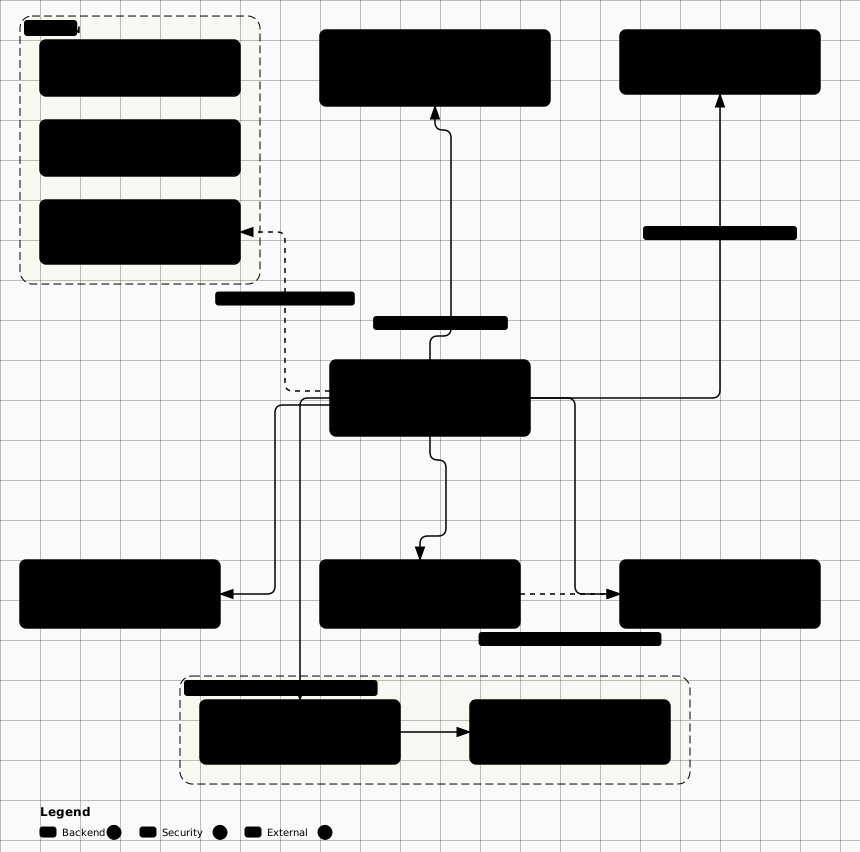
Scroll sideways to see the whole diagram
The Five Modes and What Each Actually Isolates
PF means a port forward is the only path, so the honest answer is no until you create one. Arrows read from the guest outward: → Internet is guest-to-internet, Host → is host-to-guest. Values follow VirtualBox's own mode table, because it is the most explicit about the guest-to-guest and host-loopback paths; VMware, Hyper-V and libvirt map onto the same five shapes.
| Mode | → Internet | → Host | → Other Guests | Host → | LAN → |
|---|---|---|---|---|---|
| Bridged | Yes | Yes | Yes | Yes | Yes |
| NAT | Yes | Yes — 10.0.2.2 | No | PF only | PF only |
| NAT Network | Yes | Yes — 10.0.2.2 | Yes | PF only | PF only |
| Host-only | No | Yes — host adapter | Yes | Yes | No |
| Internal network | No | No | Yes | No | No |
What Each Mode Does Not Protect You From
- Bridged. Everything. The target is a peer of your real devices: it takes a DHCP lease from your router, appears in its client list, and its open ports are scannable from your phone. Never for a vulnerable target.
- NAT. The LAN from the guest. Outbound traffic leaves as your host's IP, so the target can reach your router, NAS and printers. Inbound is blocked; outbound is not.
- NAT Network. Guests from each other. It is a flat segment with DHCP and a route out, so a compromised attacker VM can reach the victim VM and anything else attached to it.
- Host-only. The host. Guests reach every service the host exposes on that adapter, and any guest with a second NAT or bridged adapter becomes a router between the lab and your LAN.
- Internal network. A guest with a second adapter, which turns that VM into the lab's route to your LAN. It also does nothing about shared folders, clipboard, drag-and-drop or snapshots.
NAT Is a Route, Not a Wall
VirtualBox NAT hands each guest a private address and resends its frames "using the host operating system", so to anything on your network the traffic looks like it came from the host itself. The direction that matters for a lab is the one people do not check: the guest can open a connection to your router's admin page, your NAS, a printer, or another laptop's file share, because your host can. NAT only stops the LAN from starting a connection inward.
The same engine maps the host's loopback into the guest at 10.0.2.2,
which is why a database or dev server you left bound to 127.0.0.1
on the host is reachable from a guest that is supposedly "behind NAT". The manual calls this out explicitly:
the VM has access to the host's loopback interface and the services running on it.
NAT Network Is a Flat Segment
A VirtualBox NAT Network is an internal network plus a NAT service plus DHCP. It prevents systems outside the network from reaching in, and "lett[ing] systems inside communicate with each other" is part of the design, not a bug. Two VMs on one NAT network reach each other on every port.
That is exactly what you want for an attacker-and-target pair, and exactly what you do not want when the second member is a VM you keep between labs. If you chose NAT Network because it has DHCP and internet access, you also chose a segment with no guest-to-guest boundary.
Host-only Has a Host on It; Internal Does Not
Host-only creates a software interface on the host, so guests and the host behave as if plugged into the same switch: guest-to-guest and guest-to-host both work, the internet does not. Internal creates nothing on the host at all — the network is visible only to VMs that use the same internal network name. That difference decides which one a lab gets:
- →Host-only when you need the host to serve a payload, receive evidence, or reach a target with a browser. Accept the host↔guest path and keep that host surface patched.
- →Internal for malware, and for any target that must not be able to touch the host at all. Nothing on the host has an address on that segment.
What No Network Mode Covers
How to Verify Isolation Instead of Assuming It
Four checks in this order: what the hypervisor says the adapter is, what the guest's routing table says, whether the guest can reach the LAN, and whether the LAN can reach the guest. The first three are one-liners. The fourth needs a second machine, and it is the only one that settles the argument.
VirtualBox: Read the Adapter Back
# Networks that exist on this host
VBoxManage list hostonlyifs
VBoxManage list intnets          # internal networks with at least one VM attached
VBoxManage list natnetworks

# What each adapter on the guest is actually attached to
VBoxManage showvminfo "Victim" | findstr "NIC"
VBoxManage showvminfo "Victim" --machinereadable | findstr "nic1 nic2 hostonlyadapter"
Expected: nic1="hostonly"
with the adapter name you created, or nic1="intnet"
plus the same internal network name on every member. Anything reading bridged
is a fail, and a nic2="nat"
on a malware victim is the defect, not a detail: one extra adapter is all a sample needs to reach the
internet.
KVM / libvirt: Read the Network XML
virsh net-list --all
virsh net-dumpxml lab-adnet
virsh domiflist Victim

# The one attribute that decides the boundary:
#   <forward mode='none'/>  -> no route off this host (same as omitting <forward>)
#   <forward mode='nat'/>   -> outbound route through the host, guests still reach each other
domiflist
should show type network
and the source name of your lab network. A type of bridge
pointing at the host's physical bridge is a bridged adapter with a different spelling. Note that
mode='none'
is valid and means the same as leaving the element out; what you must not see is a <nat>
block under a NAT forward.
From Inside the Guest: The Route Table Is the Truth
ip -4 addr show
ip route
ip route get 192.168.1.10          # ask the kernel which path a real LAN address would take
curl -m 3 -sS http://192.168.1.1 >/dev/null || echo "BLOCKED: no path to the LAN"
curl -m 3 -sS http://example.com >/dev/null || echo "BLOCKED: no internet"

# Windows guest equivalents
# Get-NetIPConfiguration | Select-Object InterfaceAlias, IPv4Address, IPv4DefaultGateway
# route print
# Test-NetConnection 192.168.1.1 -Port 80
ip route get
is the decisive line. Network is unreachable
is the answer you want on an Internal or host-only segment. A via 10.0.2.2
or via 192.168.x.1 line means a live path exists even if the router happens to drop your
ping. A host-only guest with a second NAT adapter will answer with the NAT path — that is not a false
positive, it is the finding.
From the Real LAN: The Only Test That Counts
Run this from a different device on your Wi-Fi — a laptop, not the hypervisor host. Run the positive controls first, or a closed port proves nothing except that the service was down.
# 1. Positive control from the hypervisor host: the service really is up
curl -m 3 -sS http://10.10.30.20/ >/dev/null && echo "lab service is up"

# 2. Positive control for a published port, on loopback only
curl -m 3 -sS http://127.0.0.1:8080/ >/dev/null && echo "published app responds on loopback"

# 3. Decisive negative test, from ANOTHER machine on your Wi-Fi
nmap -Pn -p 22,80,445,8080 10.10.30.20
curl -m 3 -sS http://192.168.1.50:8080/ || echo "not published to the LAN"

# Pass for the lab IP: no route to host, host seems down, or every port filtered.
# Pass for the published port: nothing answers on the host's LAN address. A refusal
#   there means the host is reachable but the port is closed - acceptable, not ideal.
# Fail: any open/SYN-ACK, or a 200 from the host's LAN address.
Scanning the guest's 10.x
address from the LAN normally fails before any port is tested, because your router has no route to the lab
subnet. That is a pass, and it is also why step 3 scans the host's LAN address for the published port:
the lab subnet being unroutable says nothing about a container published on 0.0.0.0.
Both tests, every time.
The Classic Failure: -p 8080:80
When no host address is given, Docker publishes the port on every host address, IPv4 and IPv6.
-p 8080:80
is therefore 0.0.0.0:8080
and [::]:8080:
every phone, TV and laptop on your Wi-Fi can reach the deliberately vulnerable app.
-p 127.0.0.1:8080:80
binds IPv4 loopback only; add -p [::1]:8080:80
if you also need IPv6 loopback. Prove which one you got rather than reading the command back to yourself:
# The wrong way, then the right way — same image, one prefix apart
docker run -d --name lab-http -p 8080:80 nginx:alpine
docker ps --format '{{.Names}}	{{.Ports}}'      # 0.0.0.0:8080->80/tcp, [::]:8080->80/tcp
docker rm -f lab-http

docker run -d --name lab-http -p 127.0.0.1:8080:80 nginx:alpine
docker ps --format '{{.Names}}	{{.Ports}}'      # 127.0.0.1:8080->80/tcp
docker port lab-http

# Two independent views of the host socket
ss -lntp | grep 8080                             # docker-proxy on the bind address
netstat -ano | findstr :8080                     # Windows host equivalent

# Fail the whole lab if any published container is on a wildcard address
docker ps --format '{{.Names}} {{.Ports}}' | grep '0.0.0.0' || echo "all ports loopback-bound"
docker ps --format '{{.Names}} {{.Ports}}' | grep -F '[::]' || echo "no IPv6 wildcard bind"
One caveat on ss:
it shows docker-proxy
only while the userland proxy is enabled. With "userland-proxy": false
in daemon.json
there is no host socket at all — Docker programs a DNAT rule instead — so an empty
ss
output does not mean the port is closed. docker ps --format
and an external scan are the authority; ss is a hint.
Hypervisors have the same default. VBoxManage modifyvm "VM" --natpf1 "ssh,tcp,,2222,,22"
forwards traffic arriving on port 2222 "on any host interface". Adding the host IP —
--natpf1 "ssh,tcp,127.0.0.1,2222,,22"
— restricts the forward to loopback. The same choice exists on every NAT-style forward you create.
Containers: A Bridge Network Is Not a Wall
A Docker or Podman bridge network is a switch, not a boundary against the host. Docker's documentation is unusually direct about it: a bridge network "allows unrestricted network access to containers in the network from the host", "blocks access from containers in other networks and from outside the Docker host", and uses masquerading so external devices only see the host's address. That is VirtualBox NAT with different nouns — and, like NAT, the outside-in block holds only until you publish a port.
--network Selects a Switch, Not a Boundary
A user-defined network keeps your lab containers away from unrelated containers on the default bridge —
which is a real improvement, because the default bridge puts every --network-less
container on one segment. It does not keep them away from the host, and it does not keep them off your
LAN: egress is masqueraded through the host like any other guest. Podman's bridge driver behaves the same
way, with the same flags: podman network create lab-web
and podman run --network lab-web.
docker network create lab-web
docker run -d --name dvwa --network lab-web -p 127.0.0.1:8081:80 ghcr.io/digininja/dvwa

# Same network: every port on every member is reachable. Different network: not.
docker network inspect lab-web --format '{{json .Containers}}'

# An internal network removes the egress gateway (no NAT, no internet).
# It does not remove the host's bridge interface, so the host still reaches container IPs.
docker network create --internal lab-internal
docker network inspect lab-internal --format '{{.Internal}}'

# No network at all: loopback inside the container and nothing else. Interact with exec.
docker run --rm --network none alpine ip -4 addr show
Read the last one carefully before you use it as a containment story: --network none
is genuine network isolation, but it also means no egress, no published ports and no browser from the
host — you get a shell and nothing else. It is the right choice for a single malicious binary and the
wrong choice for a web target you need to attack.
--net=host Deletes the Boundary
--network host
(also written --net=host)
puts the container in the host's network namespace: no veth pair, no bridge, no NAT.
-p
is silently ignored, because there is nothing left to forward. A vulnerable app that listens on
0.0.0.0
inside that container is listening on your Wi-Fi interface. Host networking is native on Linux; Docker
Desktop implements it as an opt-in feature and Podman only supports it on Linux, so the flag may fail
outright on a Windows or macOS host rather than silently expose anything.
# The container's listener becomes the host's listener
docker run -d --name lab-host-net --network host nginx:alpine
ss -lntp | grep ':80 '
# 0.0.0.0:80, *:80 or [::]:80  -> every interface, including Wi-Fi. Reachable from the LAN.
# 127.0.0.1:80                 -> loopback only. The flag did not expose anything by itself.

# Only defensible form: the app itself binds loopback inside the shared namespace
docker run --rm --network host alpine sh -c 'nc -l 127.0.0.1 9000'
A Compose Project Network Is Not Isolation From the Host
docker compose up
creates <project>_default
and attaches every service. That keeps two Compose projects from seeing each other; it does not keep the
host from seeing them, and it does not stop a compromised container from reaching your LAN through the
host's masquerade. What actually keeps the app off your Wi-Fi is the bind address on each published port
— one line per service:
services:
  juice-shop:
    image: bkimminich/juice-shop
    ports:
      - "127.0.0.1:3000:3000"   # correct: IPv4 loopback only
      # - "3000:3000"           # wrong: 0.0.0.0 and [::], i.e. your whole LAN

  dvwa:
    image: ghcr.io/digininja/dvwa
    ports:
      - "127.0.0.1:8081:80"
    # network_mode: host       # never: opts this service out of the network entirely
Compose has one more trap that is easy to miss in a copy-pasted file:
network_mode: host
on a single service. It does not error, it does not warn, and it quietly removes that container from the
project network you thought was your boundary.
The Loopback-Bind Rule
Every published port on a deliberately vulnerable service starts with 127.0.0.1:.
No exceptions for "just while I test", and no exceptions for a high port you think nobody will find — a
LAN scan finds it in seconds. If a second machine or a phone genuinely needs access, put that device on
the lab segment (host-only, Internal, or a container attached to a lab bridge) instead of widening the
bind. The one-line gate from the verification section belongs in your notes next to the
docker compose up:
docker compose ps --format '{{.Name}} {{.Ports}}' | grep '0.0.0.0' \
  || echo "all ports loopback-bound"
# Any line printed above the confirmation is a service published on every interface.
Kubernetes Labs (kind, minikube)
What the Cluster Actually Is
kind runs each node as a Docker container, attached to a Docker network named
kind.
It is not the host network, and it is not a VM: the host reaches every node container directly, and pod
egress is masqueraded through the host onto your LAN.
- For a deliberately vulnerable workload that is the same exposure as a NAT guest, with more moving parts.
- Pods are reachable through a NodePort, a port mapping or
kubectl port-forward, not by their pod IP from the host. - minikube's Docker driver has the same shape;
minikube start --driver=noneis the exception, because it runs the node directly on the host and puts the cluster on your host network.
docker network ls | grep kind
docker inspect kind-control-plane --format '{{json .NetworkSettings.Networks}}'
kubectl get nodes -o wide                  # INTERNAL-IP is a container address, not a LAN address

# Does a pod have a path to the LAN? Run this in a throwaway pod.
kubectl run lan-probe --rm -it --restart=Never --image=busybox -- \
  sh -c 'ip route; ping -c 1 -W 3 192.168.1.1 || echo "no ICMP reply"'
The default route inside the pod is the finding: traffic leaves through the node and is masqueraded onto your LAN. A ping reply from your router makes it concrete, but no reply is not proof of isolation, because routers filter ICMP — read the route as well as the packet. Blocking egress properly means a NetworkPolicy with a default-deny rule plus a CNI that enforces it; a host-only adapter is not available to you, because the cluster never had one.
Three Places a Vulnerable Workload Leaks Onto the LAN
-
01
extraPortMappings. kind's documented default for
listenAddressis0.0.0.0, sohostPort: 80is on your Wi-Fi. SetlistenAddress: "127.0.0.1"on every mapping. -
02
NodePort services. On a Linux host a NodePort is reachable at the node container's IP and node port even with no mapping; on Docker Desktop the engine sits in a VM, so the mapping is required — and is also exactly what puts it on the LAN.
kubectl get svc -Alists every one you forgot. -
03
port-forward. Defaults to
localhost(both 127.0.0.1 and ::1), which is correct.--address 0.0.0.0is the mistake, and it is one flag away.
The API server is the one place kind gets this right by default: networking.apiServerAddress
binds to 127.0.0.1, and kind's documentation says to keep it there and "strongly discourage[s] exposing
kind to anything other than loopback". Its own security posture is disposable clusters, not hardened ones.
kind: Cluster
apiVersion: kind.x-k8s.io/v1alpha4
nodes:
  - role: control-plane
    extraPortMappings:
      - containerPort: 30080
        hostPort: 8080
        listenAddress: "127.0.0.1"   # without this the node port is on your LAN
        protocol: TCP
After the cluster is up, confirm what Docker actually published — the config file is intent, the port
list is fact: docker ps --format '{{.Names}} {{.Ports}}' | grep kind.
Any 0.0.0.0:
line there is a mapped port on every interface, regardless of what the YAML says.
The Two Cases a Network Mode Cannot Fix
RF: The Card Hears Every Network in Range
A monitor-mode adapter is not attached to your lab network. It captures every frame its radio can hear on the channel: beacons and probe requests from neighbouring access points, and data frames from clients you do not own. Host-only, Internal and NAT mean nothing here — the containment boundary for radio is spatial and legal, not logical. Your lab SSID limits what you transmit against, never what your card receives.
# 1. What the radio can hear from here — run this in managed mode
sudo iw dev wlan0 scan | grep -E '^BSS|SSID'

# 2. Switch the adapter, on the channel your own AP uses
sudo ip link set wlan0 down
sudo iw dev wlan0 set type monitor
sudo ip link set wlan0 up
sudo iw dev wlan0 set channel 6
sudo iw dev wlan0 set txpower fixed 500   # ~5 dBm, where the driver allows it

# 3. Restrict the capture to your AP's BSSID instead of trusting the channel
sudo tshark -i wlan0 -Y "wlan.bssid == aa:bb:cc:dd:ee:ff" -w lab-only.pcapng
Scan first, then switch: several drivers refuse a scan while the interface is in monitor mode, and a channel change mid-capture is how a "lab-only" pcap ends up full of your neighbours' frames.
Treat that scan list as the boundary test. If it shows six SSIDs you do not own, a monitor-mode capture on that channel contains their frames, and a deauth or evil-twin test against any of them is an offence in most jurisdictions — not a lab exercise. Keep transmit power low, filter to your BSSID, and delete captures that turn out to contain other people's traffic.
Devices: A Phone on Your Wi-Fi Is on Your LAN
A test phone that joins your home SSID gets a 192.168.x
address next to your laptop and NAS. Nothing about the lab is involved: the device can reach LAN services,
and the LAN can reach it — including an unauthenticated debug shell if you left
adb tcpip 5555
running. USB tethering or a USB Ethernet adapter does the same from the other direction and makes the
phone part of the host's network.
Put the device on the practice SSID from the Wireless Lab
(192.168.100.0/24)
or a guest VLAN with client isolation, remove the SIM and personal accounts, and prove where it landed
rather than assuming:
adb devices -l
adb shell ip -4 addr show wlan0
adb shell ip route
# Expected: 192.168.100.x via 192.168.100.1 and no default route through your home router.
# A 192.168.1.x lease means the phone is a peer of your laptop, NAS and printer.

adb shell settings get global adb_wifi_enabled   # 1 means wireless debugging is on
Two-Minute Pre-Flight
Run this before you detonate anything, and again after any change to an adapter, a Compose file or a kind config. A check you cannot complete is a fail, not a maybe.
-
1
Adapters. Every guest has exactly the adapters you meant, and none reads
bridged. One line per VM fromshowvminfoordomiflist. -
2
Routes.
ip routeinside the target shows the lab subnet and a default route only where you intended one — andip route get 192.168.1.10answers "Network is unreachable". - 3 Guest → LAN fails. A request from the guest to your router is blocked, and the failure is a routing error, not a timeout you did not wait out.
- 4 Host → guest works. The positive control passes from the hypervisor host, so step 5 means something when it fails.
- 5 LAN → guest fails. From a second device on the real network, the guest's lab IP and the host's published port are unreachable.
-
6
Ports are bound. No
0.0.0.0or[::]indocker ps, including the kind node's mapped ports. - 7 Radio and devices. The capture filter names your BSSID, and the test phone is on the practice SSID with no default route through your home router.
# 1-2. Adapter and route, on the hypervisor and in the guest
VBoxManage showvminfo "Victim" --machinereadable | findstr "nic1 nic2 hostonlyadapter"
ip route; ip route get 192.168.1.10

# 3. Guest must not reach the LAN
curl -m 3 -sS http://192.168.1.1 >/dev/null || echo "guest cannot reach the LAN"

# 4. Positive control from the host, so step 5 is meaningful
curl -m 3 -sS http://10.10.30.20/ >/dev/null && echo "lab service is up"

# 5. From ANOTHER machine on the real LAN
#    nmap -Pn -p 22,80,445,8080 10.10.30.20
#    curl -m 3 http://<this-host-lan-ip>:8080
#    Expect no route or filtered. Any open port is a fail.

# 6. Published ports must be loopback-only
docker ps --format '{{.Names}} {{.Ports}}' | grep '0.0.0.0' || echo "all ports loopback-bound"
docker ps --format '{{.Names}} {{.Ports}}' | grep -F '[::]' || echo "no IPv6 wildcard bind"
When every line passes, write the mode, the lab subnet and the pass/fail result into the lab's own notes. The next reader — often you, six weeks later — needs the evidence, not the intention.